The adaptuner is a MIDI-to-MIDI program. So, in order to hear any
sound, you’ll have to use some kind of synthesizer.
Instead of using the MIDI
tuning standard (which would be perfectly suited to this
application, but isn’t implemented by most hardware and software
instruments), adaptuner uses MIDI pitch bend messages. This entails
some assumptions about the settings of the synthesizer:
The synthesizer “listens” to all 16 channels of its MIDI
input.
The pitch bend range is set to 2 (equally tempered) semitones in
both directions.
Using with an e-piano
This is the intended use case: The piano should sound and play
“as normal”, while delegating the on-the-fly tuning to adaptuner. In
order for this to work, I make the following assumptions:
The piano has a MIDI input and a MIDI output.
The piano sends all events like key and pedal presses and
program changes through its MIDI output, but plays no sound while
doing so. It only plays whatever signals arrive at its MIDI input.
In many instruments, the relevant setting is called “Local Control”
(and should be turned off).
The piano “listens” to all 16 channels of its MIDI input. The
relevant setting is sometimes called “Multi-Timbral Mode”.
The pitch bend range is set to 2 (equally tempered) semitones in
both directions. This is a default setting for every instrument I’ve
seen so far.
The piano reacts to input events on different channels in
accordance with “General MIDI”. If you hear keys playing with
different instruments (especially common: sounds of a drum set on
one key in each octave):
Try changing the sound program to a different instrument (and
back).
Under adaptuner’s “MIDI connections”, choose a
different set of 12 output channels.
Check the manual for your piano again: Maybe there are different
“Multi-Timbral” modes or even a “General MIDI” (or “GM”) mode. If
nothing helps, please open an issue.
The piano uses MIDI “note off” messages: It sends such a message
when a key is released, and it terminates notes upon receiving such
a message (unless the note is held by the sustain pedal). Some (old
Yamaha?) instruments use “note on” messages with the velocity
attribute set to zero instead of “note off” messages. If that
behaviour turns out to be very common, I’ll accommodate it. So,
please open an issue if you’re affected.
Exploring the default
configuration
Upon startup, the adaptuner will first show you a window that
allows you to set up MIDI connections to input and output devices.
Once you’ve done that and closed the window (you can always return
to it later), you’ll notice the hamburger menu ☰ at the
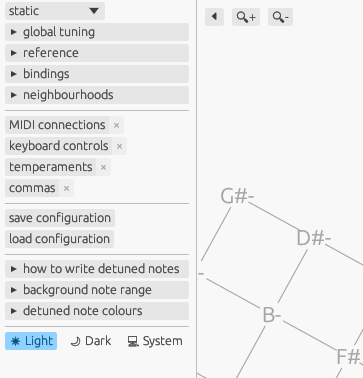
top left of the screen. Click on it, and a side panel will become
visible that shows all settings and options:
There are several sections in this side panel:
The topmost section contains settings that are specific to the
currently selected tuning strategy. In the picture above, a
strategy named static is selected, and it allows you to
change
the global tuning,
the scale’s reference,
the key (and pedal) bindings that you can use to
control the behaviour, and
some neighbourhoods of notes with specified tunings
relative to the scale reference.
Other strategies may allow different settings, and I’ll write
detailed explanations of the strategies later.
The second section allows you to open some windows that contain
settings pertaining to
MIDI connections – you already know this window, as it
was the one that was initially open,
keyboard controls – some options that control the
virtual keyboard that you can play by clicking with your mouse or
with your computer’s keyboard, and
temperaments and commas, which let you control
the default temperaments you can choose from, and the commas used to
write note names of tempered notes. (I’ll write explanations of
these settings later.)
The third section allows you to load and save custom
configurations. I’ll discuss it further down.
The fourth section contains options that control the appearance
of the main UI. They should be pretty self-explanatory.
Finally, there’s a theme preference switch.
Loading and saving
custom configurations
Let’s say you’ve played around with one of the default
configurations and reached something that you like. The “save
configuration” button will allow you to save the current
configuration. The “load configuration” button will allow you to
load any previously saved configurations.
There’s also a small, but growing, collection of example
configurations here.
Note that these configurations always apply to the latest version of
adaptuner only.
It is possible, but not advisable, to edit configuration files
manually. The adaptuner checks many of invariants a configuration
file must satisfy, but not all of them. Manually edited
configuration files may violate some invariants and lead to
unexpected behaviour or crashes. Configuration files created by
using the “save configuration” button will be correct (assuming
there are no bugs…).